Showing posts with label Workflows. Show all posts

Friday, February 2, 2018

Conservation Treatment Tiers: An Aid to Prioritization

Staff members often need to know how much time a repair might take in order to prioritize work or to give an estimate to a donor who would like to sponsor a project. In 2017 the staff in the Bentley Conservation Lab devised a more comprehensible method of estimating repair time. A three-tier system didn’t seem detailed enough so we started with four and tweaked it over the next couple months until we settled on our five-tier system.
                Our Tier One category (less than one-hour repair) responds to requests for a quick fix-- examples below. Tier Five designates projects that are very involved and will take more than ten hours. There is a lot of area between “less than one hour” and “more than ten” so we broke it down into three more tiers that fit with our most common types of projects.
                The legend (below right) hangs in our lab for easy reference.  The bar graph is useful in reporting to our administration (through the Business Intelligence Committee) about the types of projects we handle and how long they take. It doesn’t report ongoing work, just the projects that have been completed each month.


Graph for Business Intelligence Report and legend for Conservation Lab

Tier 1: < 1 Hr.

                 A Tier One item might be popped in between longer projects or at the end of a day when starting a larger project doesn’t seem efficient. A Tier One is often done immediately because it is needed by the digitization lab which makes it high priority. Another example is when a researcher in our reading room requests an item and Reference staff finds the item in such need of repair that it might be damaged in handling.  Some examples are mending small tears, ironing wrinkles, and removing sewing or staples.


Ironing on a quick mend

Tier 2: 1 - 3 Hrs.

               Tier Two covers slightly more time-consuming repairs such as making portfolio-style boxes or encapsulating scrapbook leaves when they are too fragile to be rebound but must be protected.


Scrapbook pages encapsulated in polyester film


Inside view of a portfolio style box


A finished portfolio style box

Tier 3: 3 - 5 Hrs.

               Examples of Tier Three jobs are mending maps or drawings, depending on the extent of the tears and number of items. The photos show tears in a map and previous tape repair that needs to be removed from fragile tracing paper.


Damaged drawings on tracing paper drawing


Multiple types of tape on tracing paper drawing


Map torn and separated at the fold

Tier 4: 5 - 10 Hrs.

               This Ann Arbor Film festival document was a hand-made scroll with many types of tapes and adhesives, definitely Tier Four, as were the founding documents of the University of Michigan Philosophical Society. The book was in pieces and so important to the university’s history that it was given a ¾ leather binding.


12 foot Ann Arbor Film Festival collaged scroll


2 images of the scroll, detailing tape, adhesive and loose items


University of Michigan Philosophical Society founding documents, before treatment


Inside detail


Detail of rusty staples and worn signature folds


Finishing the ¾ leather binding


Tier 5: > 10 Hrs. 

         Tier Five projects are those that take over ten hours and we try to estimate just how many that might be. In this case we had a scrapbook of extremely acidic and crumbling paper with newspaper articles that were fragile, wrinkled and torn. We photographed each page before removing the items then used those photos for proper placement on the new pages.  The new scrapbook was larger so the articles could be displayed without overlapping.


Scrapbook, before treatment


Scrapbook pages were numbered and photographed for identification


The photos were used to match fragments of articles for proper placement


Reconstructed articles and polyester film pockets on new scrapbook leaves


Original Cover


Finished scrapbook- at long last!

               Our treatment tiers are serving their purpose and mesh well with the Bentley's system of prioritization. (Hint: it involves a COLORFUL spreadsheet!) More about that in our next rip-roaring installment.  

Tuesday, January 17, 2017

Appraisal and Arrangement Tab 101

With the forthcoming release of Archivematica version 1.6, folks are going to get a chance to roll out the new Appraisal and Arrangement Tab.  We're excited to implement Archivematica—and the Appraisal Tab—in a production environment and will continue to blog about our experiences (as well as the additional enhancements we've contracted with Artefactual Systems to complete).

In the meantime, we wanted to share two screencasts to help folks get up and running with the Appraisal Tab and also get a better idea of the digital archives workflow we're implementing here at the Bentley Historical Library.  Without further ado, I give you:

Part 1: Configuring ArchivesSpace and DSpace Integration within Archivematica

This screencast provides a step-by-step guide to adding instances of ArchivesSpace and DSpace for use with the Appraisal and Arrangement Tab. 


Part 2: Appraisal, Arrangement to ArchivesSpace and Deposit to DSpace

This screencast demonstrates the functionality of Archivematica's Appraisal and Arrangement Tab, including the appraisal of digital content within the Appraisal and Arrangement Tab, the arrangement of content to corresponding ArchivesSpace Resource records, and the deposit of content to a DSpace collection.


Some features in the above may change over time and with subsequent releases of Archivematica—and our local practice is sure to evolve as we get more experience under our belt—but we hope you find these videos helpful.  As always, please feel free to leave a comment or drop us a line at bhl-mellon-grant[at]umich.edu

Wednesday, February 17, 2016

The Ingest Entity at the Bentley Historical Library

The other night I gave a guest lecture for a University of Michigan School of Information course Mike is teaching on "Digital Preservation." The session was nominally titled "SIPs and File Format Identification," but the focus was on "Ingest" more broadly, including what ingest means here at the Bentley Historical Library, some examples of real-world SIPs and AIPs (current and future!) and a little checksum calculation exercise--because who doesn't like checksum calculation exercises?

At the heart of the presentation is the following diagram that documents our current ingest strategy and a [relatively] current version of our workflow. It's a useful reference Nancy and Mike put together a couple years ago that I don't think we've featured here before.
BHL Digital Processing Workflow

Here are the slides if you're interested!

Monday, November 16, 2015

Digital Objects and ArchivesSpace

One (somewhat unexpected) challenge in our ArchivesSpace-Archivematica-DSpace Workflow Integration project has involved mapping terms and terminologies across the different platforms.  In conversations with our development partners at Artefactual Systems, members of the ASpace community, and other peer institutions, we've found that it's really important to take a moment and make sure we're all on the same page when we're talking about something like a 'digital object.'

Having some common ground/shared understanding is very important, as our workflow establishes the following equivalences:

1 Archivematica SIP = 1 Archivematica AIP = 1 ASpace Digital Object Record = 1 DSpace Item

I'd like to take this opportunity to review the reasons behind this structure, but first I think it would be useful to take a look at how others in the ASpace user community are approaching digital object records.

Perspectives on the ASpace Digital Object Record

As evidenced by the introductory materials for an ASpace workshop that was held here in Ann Arbor this past January, the digital object record was designed to be flexible:
The Digital Object record is optimized for recording metadata for digitized facsimiles or born-digital resources. The Digital Object record can either be single- or multilevel, that is, it can have sub-components just like a Resource record. Moreover, the record can represent the structural relationship between the metadata and associated digital files--whether as simple relationships (e.g., a metadata record associated with a scanned image, and its derivatives) or complex relationships (e.g., a metadata record for a multi-paged item; and additionally, a metadata record for each scanned page, and its derivatives). One or more file versions can be referenced from the Digital Object metadata record.  The Digital Object record can be created from within a Resource record, or created independently and then either linked or not to a Resource record.
While this flexibility is great, it also provokes a lot of questions about just how to implement the digital object records, some of which have been featured in conversations on the ArchivesSpace Google Group as well as the ArchivesSpace Users Group.

On one end of the spectrum, we have complex digital objects--multilevel intellectual entities comprised of multiple bitstreams that can be represented in a structured hierarchy.  Brad Westbrook provides some examples of this use case in this thread from the ASpace Google Group. Those of us in attendance at the "Using Open-Source Tools to Fulfill Digital Preservation Requirements" workshop a couple weeks ago at iPRES got to see a real-world example of how a complex digital object could be represented in ASpace via content from the UC San Diego Research Data Curation Program in the Online Archive of California

Far more common (based upon conversations with peers and posts to the lists), is a simpler approach in which the digital object record is used primarily to record URL information that will provide links to content from the public ASpace interface or from <dao> elements in exported EAD.  This thread provides some valuable thoughts from Ben Goldman, Jarrett Drake, Chris Prom, Maureen Callahan, and our own Max Eckard.

Several of the important ideas raised in that conversation include the need for institutions to:
  • Define systems of record for data/metadata and determine how ASpace fits into this ecosystem.
  • Identify how information in the digital object records can be used now and in the future (i.e., the records can bring together digital content stored in various systems/locations, serialize information to EAD files, respond to queries via the API, etc.)
I won't attempt to delineate the different positions in the thread but encourage you to give it a thorough read!

Moving from this (very) brief review of the landscape, I wanted to identify some of our key assumptions here at the Bentley:
  • The general position outlined by Max is still accurate ("We're thinking of the DO module more as a place to record location than as a place to "manage" digital objects or the events that happen to them"): we are primarily interested in using the ASpace digital object module to create <dao> tags and links to content in EAD finding aids.
    •  We would therefore not be looking to include technical/preservation metadata about AIPs in the digital object record or do extensive arrangement with the digital object components.
    • With the above in mind, the ‘digital object’ records become somewhat analogous to physical ‘instances’--these are manifestations of the archival description expressed in the associated archival object record.
    •  In addition, within AS a digital object may be ‘simple’ or ‘complex’ (in the latter case, comprised of one or more digital object components).  We're now contemplating slightly more 'complex' digital object records...
    • We've also been working with Artefactual Systems and some other peer institutions to think more about how and where to record machine-understandable/actionable PREMIS rights information associated with digital objects.
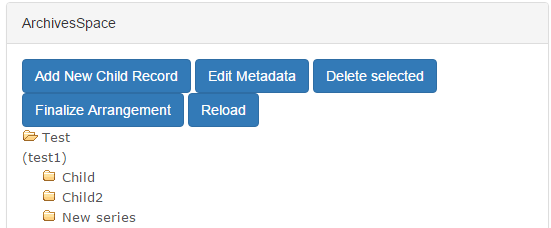
  • Within the new Appraisal and Arrangement tab, a dedicated ASpace pane will display the ‘archival objects’ (i.e., the subordinate components) of a given resource record in a hierarchical structure. Within the ASpace pane, users will be able to create new archival objects and add basic metadata.

  • Within the appraisal tab, archivists will drag/drop content (individual files and/or entire directories) to a given ‘archival object’ in the ASpace pane.

    • All content associated with an archival object will be a single SIP/AIP in Archivematica.
    • Furthermore, each SIP/AIP will comprise a single ASpace ‘digital object’
    • 1 ASpace digital object = 1 Archivematica SIP = 1 Archivematica AIP = 1 DSpace item
  • We are not spinning off separate DIPs; we may configure Archivematica's Format Policy Registry (FPR) to spin off lightweight copies for some file formats, but otherwise the Archival Information Packages (AIPs) will serve for both preservation and access.
  • The Bentley's past/current use of DSpace is another factor here, as a single 'item' may contain one or more 'bitstreams' (i.e., files).  We therefore would like to be able to do some minimal arrangement of bitstreams within an ASpace digital object to control how materials will be deposited to DSpace.
    • Whenever possible, we strive to describe materials at an aggregate level, which means that a fairly large number of files (in number or space on disk) may be associated with a given 'item.' We also package content in .zip files to reduce the number of files we have to manage and that our users have to download.
    • To avoid presenting our users with extremely large .zip files that could be difficult to download and access, we often will chunk content across multiple .zips--i.e., instead of one 10 GB .zip, we will provide users with five 2 GB zips, as evidenced in this example from our Governor Jennifer Granholm collection:

    • In other cases, we might want to differentiate between access and preservation copies of materials in a collection. As an example, the following DSpace item includes an .mp4 access copy of a video recording while the .zip file contains an .iso image file of the original DVD:


    • We see the DSpace item as being the equivalent of the ASpace digital object record, with the individual bitstreams corresponding to the digital object components.
    • We won't be using DSpace forever (Michigan recently became a Hydra partner) and so we don't want to predicate our ASpace-Archivematica workflows on legacy systems.

Potential New Features

So...where does this leave us?  I wanted to talk through a possible arrangement workflow (based upon the new Appraisal tab) and how this might be translated into ASpace digital object records.  Let's see how this goes...

We've suggested the addition of an “Add digital object component” button in the ASpace pane (see above screenshot), which could function as follows:
  • A user would select a particular archival object in the ASpace pane and click the “Add digital object component” button.
  • Clicking the button will trigger the creation of a ‘digital object component’ that will appear as a child of the archival object.
    • Adding at least one digital object component essentially creates the main digital object record (which may include multiple components).
    • All the ‘digital object components’ nested under an archival object will comprise a single AS ‘digital object.’
    • In arranging the digital object components, users would only be able to work with 1 level of hierarchy--this will be very simple and minimal ‘arrangement.’
  • A digital object component will essentially be a bucket or a virtual container where one or more files and/or folders may be dragged/dropped.
  • To visually distinguish the ‘digital object component’ from archival objects, it should have a different icon (perhaps use the following from the digital object record in ASpace) and/or the text might have a different colored background.
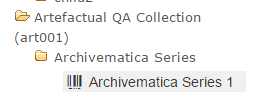
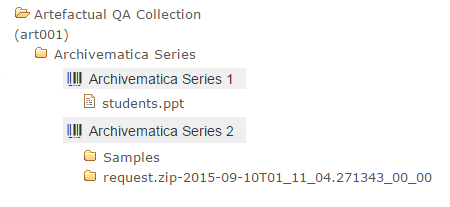
  • The digital object component would display a default title, comprised of the associated archival object’s title and/or date and a consecutive integer. (In other words, for the archival object ‘Archivematica Series’, the first digital object component would be ‘Archivematica Series 1’, the next would be ‘Archivematica Series 2’ and so forth.)
  • The user would drag one or more files/folders on top of a digital object component. The file(s) and/or folder(s) would be nested under the digital object component. The following example has two digital object components:
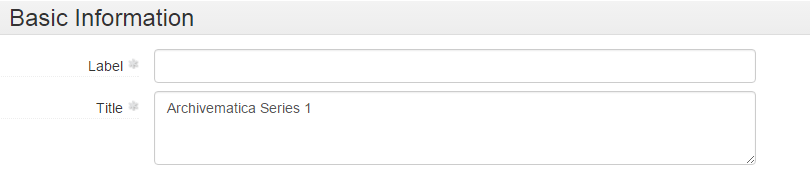
  • The user can select a digital object component and click the ‘Edit Metadata’ button. This would permit the user to edit the only pieces of metadata required for digital object components, ‘title’ and/or ‘label’, as seen below in AS:

We've also thought about some simple rules for digital object components (and information packages), as well.  Once an archivist clicks the 'Finalize Arrangement' button, Archivematica will create a SIP for the materials associated with a given archival object and commence its Ingest procedures, which may result in the creation of preservation copies (or OCR text).  Based upon this:
  • If there is only one file, it will be deposited to DSpace as individual bitstreams.
  • If there is more than one file and/or a folder (including derivatives produced by Archivematica), everything in the digital object component will be included in a single .zip file (perhaps using the digital object component title) that will be deposited to DSpace.
  • Additional components of the AIP produced by Archivematica (the logs folder, metadata folder, and METS file) will be packaged in a .zip file and deposited as an additional digital object component (perhaps with some default file name). The Bentley would want this content to be be inaccessible to the general public (and ‘not published’ within the ASpace digital object record).
After Ingest processes are complete and the content has been deposited to DSpace, information will be written back to the ASpace digital object record.  The main (i.e., 'top level') digital object would by default inherit the title and/or date of the associated archival object, employ the DSpace handle for File URI (as well as identifier? TBD…), and have an extent (in bytes) that represents all associated content.  PREMIS rights information could also be written to the digital object record, though we'd love to hear from folks with thoughts about this (for instance, would the associated archival object be a more suitable location?).

The digital object components (i.e., each specific grouping of content as well as the Archivematica logs and metadata) would then be added as children of the main digital object record: 

 
The digital object component records might also include extent information, more specific rights information, or...???

It's been exciting to think about the possibilities of ASpace's digital object record, but the fairly wide-open nature of the endeavor is also daunting, as there's no established best practices to fall back on.  What do you think?  How are (or would) you proceed?  We'd love to get your feedback and/or reactions!

Monday, October 5, 2015

Tools for the programming archivist: ead manipulation with python and lxml

LXML is an awesome python tool for reading and editing xml files, and we've been using it extensively during the grant period to do programmatic cleanup to our legacy EAD files. To give an example of just how powerful the library is, late last week we ran a script to make tens of thousands of edits to all of our ~2800 EAD files, and it took all of 2 minutes to complete. This would have been an impossible task to complete manually, but lxml made it easy.

We want to share the love, so in this post we'll be walking through how we use the tool to make basic xml edits, with some exploration of the pitfalls and caveats we've encountered along the way.

Setup

Assuming you already have a version of python on your system, you'll first need to install the lxml library

In an ideal world, that should be as easy as running "pip install lxml" from a command-line. If that doesn't work, you have a few options based on what your OS is:

  1. If you're on a mac, try "sudo pip install lxml", and type in your password when prompted.
  2. If you're on windows, you may need to run a special installer. Try this official version. You may be required to first install these two dependencies: libxml2 and libxslt.

We'll also need an ead file (or directory of files) to work on. For this demo we'll be using the ead for the UMich gargoyle collection (raw data here).

Basic usage


Parsing the ead file

First, we need to point lxml to the input ead.

Now we have an lxml "etree" or "element tree" object to work with, and we can do all sorts of things with it. From this parent tree, we can now select individual tags or groups of tags in the ead document to perform actions on, based on just about any criteria we can come up with. To do this we'll first need to use an "xpath" search:


Using xpaths

There are a few things to know about lxml's xpath function:

First, it takes input in the xpath language standard, which is a standardized way to designate exact locations within an xml file. For example, the above search returns a list of every extent tag appearing in the ead file -- the double slashes at the beginning mean that it should look for those tags anywhere in the document. If I wanted to be more specific, I could use an exact search, which would be something like "/ead/archdesc/did/physdesc/extent". We will only be going into basic xpath usage here, but the language is ridiculously powerful - if you're curious as to more advanced things you can do with it, check out this tutorial.

Second, an xpath search always returns a list, even if only one result is found. It's really easy to forget this while writing a quick script, so if you're getting errors talking about your code finding a list when it didn't expect one, that's probably the reason.

A few more xpath examples:


Accessing individual tags and their data

The xpath search will give us a list of results, but to look at or edit any individual tag we'll need to grab it out of the search results. Once we have an individual element (lxml's representation of the tag) we can start to access some of its data:


Tag manipulation

Ok! Now that we know how to get at subsections of the ead file, we can start doing some programmatic edits. In our experience, our edits fall into one of just a few categories of possible changes:

  • editing tag text
  • editing tag types
  • moving tags around
  • creating new tags
  • deleting old tags
  • editing attributes

We'll go through each of these and give some examples and practical tips from our own experience working with EADs at the Bentley.


Editing tag text

This is usually a fairly straightforward task, though there is one big exception when dealing with groups of inline tags. A simple straightforward example:

This gets more complicated when you're dealing with a tag like the following:

<unittitle>Ann Arbor Township records, <unitdate>1991-2002</unitdate>, inclusive</unittitle>

Trying to access unittitle.text here will only return "Ann Arbor Township records, " and ignore everything afterwards. There is no easy way around this through lxml itself, so in these cases we've found it easiest to just convert the whole element to a string using the etree.tostring() method, doing some normal python string manipulation on that result, then converting it back into an element using etree.fromstring() and inserting it back into the ead file. That looks a little like this:

Don't worry if some of that didn't make sense -- we'll be going over more of the creating, inserting, and moving elements later on.


Editing tag types

The most straight-forward of edits. Here's an example:


Editing tag attributes

Attributes are accessed by calling .attrib on the element, which returns a python dictionary containing a set of keys (the attribute names) and their respective values:

Editing the attributes is a pretty straightforward task, largely using python's various dictionary access methods:


Deleting tags

Here you will need to access the parent tag of the tag to be deleted using the element's .getparent() method:


Creating tags

There are two primary ways of going about this - one long and verbose, and the other a kind of short-hand built in to lxml. We'll do the long way first:

The alternate method is to use lxml's element builder tool. This is what that would look like:


Moving tags around

The easiest way to do this is to treat the element objects as if they were a python list. Just like python's normal list methods, etree elements can use .insert, .append, .index, or .remove. The only gotcha to keep in mind is that lxml never copies elements when they are moved -- the singular element itself is removed from where it was and placed somewhere else. Here's a move in action:


Saving the results

Once you've made all the edits you want, you'll need to write the new ead data to a file. The easiest way we've found to do this is using the etree.tostring() method, but there are a few important caveats to note. .tostring() takes a few optional arguments you will want to be sure to include: to keep your original xml declaration you'll need to set xml_declaration=True, and to keep a text encoding statement, you'll need encoding="utf-8" (or whatever encoding you're working with):

We can also pretty-print the results, which will help ensure the ead file has well-formed indentation, and is generally not an incomprehensible mess of tags. Because of some oddities in the way lxml handles tag spacing, to get pretty-print to work you'll need to add one extra step to the the input file parsing process:

Note that the new parser will effectively remove all whitespace (spaces and newlines) between tags, which can cause problems if you have any complicated tag structure. We had some major issues with this early on, and ended up writing our own custom pretty-printing code on top of what is already in lxml, which ensures that inline tags keep proper spacing (as in, <date>1926,</date> <date>1965</date> doesn't become <date>1926,</date><date>1965</date>), and to prevent other special cases like xml lists from collapsing into big blocks of tags. Anyone is welcome to use or adapt what we've written - check it out here!


Thanks for reading along! We've found lxml to be indispensable in our cleanup work here at the Bentley, and we hope you'll find it useful as well. And if you have any thoughts or use any other tools in your own workflows we'd love to hear about them -- let us know in the comments below!

Monday, July 13, 2015

Separation Anxiety!

To Save or Not to Save...

My old mentor, Tom Powers, used to say that the business of archives is not just about saving things, but also throwing them away--whether to adhere to collecting policies, conserve resources, or to help researchers identify truly essential records.  Identifying 'separations' is therefore an essential part of the appraisal process here at the Bentley Historical Library.  While your institution might refer to this process as 'weeding' or 'deaccessioning', I'm willing to bet that our goals are the same: removing out-of-scope or superfluous content from accessions before they become part of our permanent collections.

Of course, with this great power comes great responsibility, which leads to what my good friend David Wallace refers to as the 'dark night of the (archival) soul': can we fully anticipate future uses? Are we getting rid of things that some researcher, somewhere, at some time, might find truly useful?

Clearly, it's possible.

At the same time, we're in this for the long-haul, not a sprint; the overall sustainability of our collections (and institutions) furthermore demands the strategic use of our limited resources.  Saving everything "just in case" isn't good archival practice: it's hoarding.  We're also keenly aware that having staff review and weed content at the item-level is neither efficient nor sustainable (and certainly not the best use of staff time and salaries).  Balancing available resources and staff time with the widest possible (and practical) future uses of digital archives thus becomes the crux of the matter (and something we'll no doubt continue to wrestle with for many moons to come)...

Documenting our Policies

No matter what course of action we take, it remains important to make our thoughts and reasoning available if for no other reason than to manage stakeholder expectations.  Since revamping our processing workflows for physical and digital materials last year, we've put renewed emphasis on 'MPLP' strategies, especially the idea that any kind of weeding or separations should occur at the same level (i.e., folder or series) as the arrangement and description.  Item-level weeding is strictly avoided unless there are particularly compelling reasons to remove individual items (such as extremely large file sizes or the presence of sensitive personal information).

To ensure consistency (and transparency for donors and researchers), we apply the same criteria for separations to digital and physical items, as outlined in our processing manual.  The following categories of materials are thus typically not retained:
  • Out of scope material that was not created by or about the creator or items that fall outside of the Bentley's collecting priorities.
  • Non-unique or published material that is readily available in other libraries, another collection at the Bentley, or in a publication.  
  • Non-summary financial records such as itemized account statements, purchase orders, vouchers, old bills and receipts, cancelled checks, and other miscellaneous financial records.
  • "Housekeeping" records such as routine memos about meeting times, reminders regarding minor rules and regulations, or information about social activities.
  • Duplicate material.
During our review and appraisal of digital archives, we thus keep an eye out for entire directories that contain the above categories of materials.  Given the impracticality of looking at every file, we rely upon reviewing directory and filenames and then viewing/rendering a representative sample of content as needed (using tools mentioned in my previous post on appraisal).  The goal here is not to search for individual files that meet the above criteria, but to catch larger aggregations of content that are simply not appropriate for our permanent collections.

Automation Alley

As with other aspects of our ingest and processing workflows, we've tried to automate (or at least semi-automate) aspects of our separations/deaccessioning efforts.  Two examples of this were discussed in that aforementioned entry on appraisal: scanning for sensitive personal information with bulk_extractor (which still requires the manual review and verification of results) and the identification of duplicate content.

As I discussed our approach to separating duplicate content in that piece, I won't rehash it here (short version: we don't weed individual files, but will deaccession an entire 'backup' folder if it mirrors content in another directory.  Wait--was that a rehash? Sorry...).  I will, however, note that there have been some informative discussions on the topic of duplicates on the 'digital curation' Google group, including this thread on photo deduplication which has some great links...

Another strategy that we've employed in our current workflows and are developing with Artefactual Systems for inclusion in Archivematica's new appraisal and arrangement tab is functionality to separate all files with a particular extension.  Our primary use case has been to remove system files (such as thumbs.db, temporary or backup files, .DS_Store and the contents of __MACOSX directories, including resource forks) that we've considered to be artifacts of the operating system rather than the outcome of functions and activities of our collections' creators.

On this score, some recent discussions from the Digital Curation and Archivematica Google groups have been relevant.  Jay Gattuso, Digital Preservation Analyst at the National Library of New Zealand notes that their "current approach is to not ingest the .DS_Store files, as they are not regarded by as an artefact of the collection, more as an artefact of the system the collection came from."  This represents our general line of thinking, which has also influenced our approach to migrating content off of removable media and disk imaging: we are devoting our resources to the preservation of content rather than the preservation of file systems and storage environments (except in cases where the preservation of that file system or environment is essential to maintaining the functionality and/or accessibility of important content).

Chris Adams adds some important nuances to the same thread, reporting that .DS_Store files are "only used to store custom desktop settings and the most which would happen without them is that you'd lose a custom background or sort order" and noting that "Resource forks (i.e. ._ files on non-HFS filesystems) are far more of a concern because classic Mac applications often stored important user data in them – the classic example being text documents where the regular file fork had only plain text but the resource fork contained styling, images, etc. which are critical for displaying the document as actually authored."

Knowing that there could be important information in legacy resource forks reinforces the need to discuss record creation and management practices with donors as part of the accession process.  In many cases, however, these conversations aren't convenient or even possible (as when we deal with the estate of a deceased creator).  What do we do then?  A quick Google search reveals several tools to view/extract the contents of resource forks...it strikes me that it might be possible to put together a script that could cycle through resource forks and flag any that contain additional information and should thus be preserved.  Not having really worked with resource forks or (to my knowledge) encountering one that stored the kind of additional information Adams mentions, I don't know how feasible this would be.

Whence?

So...where does this leave us?  

As part of our grant we want to be able to separate/deaccession material from within Archivematica by applying tags to specific folders/files or by doing a bulk operation based upon file format extension.  Once the deaccession is finalized, Archivematica would query the user for a description and rationale for the action and create a deaccession record in ArchivesSpace:


Beyond this development work, we're trying to inform our decision-making process for separations/deaccessions by better understanding researcher needs and expectations.  Our archivists have participated in HASTAC 2015 up at Michigan State University in addition to various digital humanities events here at the University of Michigan.  Knowing what kinds of data, tools, and procedures are gaining popularity will hopefully help us save more of the materials (and metadata) that researchers want and need.  Of course, there are still the Rumsfeldian unknown unknowns to contend with....

In any case, your input and feedback (and/or scalable solutions for what to do with those Mac resource forks) would be most gratefully appreciated: let us know what you think!

Tuesday, July 7, 2015

Git-Flow for Archival Workflows

We here at the Bentley Historical Library have been using GitHub for quite some time now. (Really, it's only been since May 19th of this year, so not even two months, but who's counting?) Since we have so much experience, we figured it was about time for a post on how we handle version control for our project to migrate all of our legacy EADs into ArchivesSpace using Git and GitHub (and no, they're not the same thing).

Git is not the same as GitHub. [1] Also, I also just learned that "git" is English slang for "unpleasant person."

GitHub is not the same as Git. [2] It turns out that GitHub is not a center for unpleasant people.

The Problem: Version Control

The following transcript is adapted from an actual four-minute chat conversation I may or may not have had with a colleague (who may or may not be Dallas). I think it describes our frustrations better than a narrative description could.

**Disclaimer!**
Names have been changed to protect the innocent (and the guilty, i.e., me!). Also, I'm just back from a vacation where I spent some time at the beach, so ocean animals are on my mind.

Anonymous White-Spotted Puffer [3]
10:45 AM
so, it sounds like anonymous red lion fish's thing got added to real_masters_all.
10:46 AM
that's probably my fault. if there are any big mistakes anonymous red lionfish can just fix those, maybe using a backup
has anonymous great white shark replaced the ead masters yet?


Anonymous Atlantic Ghost Crab [4]
10:47 AM
ugh
umm, yeah i dunno


Anonymous White-Spotted Puffer
i didn't realize anonymous red lionfish had done it to real_masters_all
10:48 AM
because anonymous red lionfish was working form a copy anonymous red lionfish had made


Anonymous Atlantic Ghost Crab
anonymous great white shark has not replaced ead masters yet but anonymous goldband fusilier and i have probably made our own changes already
but maybe anonymous red lionfish could take a copy of just the things in a csv
10:49 AM
and we could fold those back into the real masters. hopefully there won't be too much that needs to be fixed.


Anonymous White-Spotted Puffer
yeah


The problem was that there were too many people trying to do too many things at once to the same version (or two, or three) of our EADs; the problem was version control!

Even though, as I mentioned, we had been using GitHub for quite sometime to showcase and share our custom ArchivesSpace EAD Importer and the tools we've developed to clean or prep our legacy EAD and MARC XML for migration to ArchivesSpace, as well as to make changes to the Archivematica documentation (yes, I'm rather proud of this and this contribution--thanks again for showing us the ropes, Justin and Sarah!), we hadn't been using Git and GitHub the way they were intended to be used: to solve the problem of version control when working in teams whose members may or may not be working right next to each other everyday (or in our case, even on the same computers everyday).

After some discussion about the suitability of GitHub for this project (while we know a number of libraries and archives use GitHub for a variety of purposes, we're still not sure if there is any precedence for putting EADs on GitHub--maybe we're the first!), we decided to move forward with creating a "repo" for our working copy of the EADs. To fit in with the A-Team theme, we went with the name vandura, after the model of the GMC van used in the show.

We even figured out how to add a picture to our README file in Markdown:

Classy.

We decided to retain the "Real_Masters_all" directory name (because that is so different from "Real_Masters" and "FindingAids/EAD/Master"--all actual directory names!) for our EADs to serve as a reminder of those dark times, in the not too distant past, when things seemed simple, and when we just made changes to our version of record as we pleased, without thought to the hard work of our colleagues that we may or may not have been overwriting (because hey, we'll never know, and there would be no way to prove it anyway!).

Wait, I've Heard of GitHub...What's Git?


Before we go on...

If you're like me (an archivist, not a programmer!) you may or may not have known that Git and GitHub are actually two different things. Git is a distributed version control system (that is, it does not work like a shared network drive does--neither copy of a project directory is any better or more 'authoritative' than any other, and team members collaborate on identical copies). GitHub is a web-based Git repository hosting service (which is why it is so popular with open source software like Archivematica and ArchivesSpace), which also offers it's own features (like forks and pull requests). Git is a tool that you mostly use in the terminal on your local computer, while GitHub is a service that you mostly use with a graphical user interface on the Internet.

Why Use Git and/or GitHub?


So Git is a version control system, and GitHub is used in conjunction with it for work in teams. Why use them?


  • Git and GitHub are not just for software, or for people with l337 h4x0r s|<1llz. In fact, both of these work extremely well for anything that is primarily text, whether that is your EADs in XML, your catalog records in MARC, your website in HTML or even your blog written in Markdown.
  • All the cool kids are doing it. Whether it's companies like Artefactual Systems, Inc. (Archivematica) or Lyrasis (ArchivesSpace), or any of the institutions on this list, GitHub has become the place that open source software is shared with others.
  • It's better than regular old backups. With Git, you make what are called "commits" (more on that later) with meaningful messages (e.g., "correcting spelling mistakes" or "changing id attribute to authfilenumber"). You can then go back and look at all of your commits, remember why you made a particular change you made, and even revert back to a version of a project before a particular commit. All of that is much more useful when looking back on the work you've done than seeing a backup of your project made at an arbitrary time by a computer.
  • It is distributed. Everything is local. See comment above about difference between this process and using a shared network drive.
  • Interns have a place where they can point to the work they've done. With GitHub, since interns have their own accounts and since there is an online, public record of every change they have ever made, interns can point to a place online where they can showcase their work for potential employers.
  • You don't have to be at the Bentley or using any particular computer to do some work. That's handy.
  • Everything that happens gets recorded. Check this out. That's right, all 418 changes we've made in the 27 days we've used Git and GitHub for our EADs. It's like an audit trail. And you know we digital preservation types like our audit trails.
  • Management of the whole process is much easier. While there are many hands working on the same set of files, only a few hands get to accept and merge what are called "pull requests" (again, more on that later) into the Bentley's repository.
  • GitHub will tell you when you're going to overwrite someone else's work! That's probably my favorite benefit. While this doesn't make the process of figuring out what to do about conflicts any easier, at least we know about them!


Convinced? I am.

And the How: How We're Using Git and GitHub for Curation Workflows


While we haven't even begun to scratch the surface of all the different operations you could do with Git and GitHub, here's the handful that we've found helpful so far, broken down into three stages: 1) the initial, project and daily setup; 2) the process for making changes; and 3) and the process for merging those changes with the Bentley's version.

Say what you want about my handwriting, but I think that's a pretty good rendering of a laptop, if I do say so myself.

The Setup (with Git and GitHub)


While Git comes standard Linux operating systems, it doesn't on Windows or Mac. We're a Windows shop, so there was some setup involved.

Once Per Lifetime


If you haven't already, join GitHub. The instructions are here. If you're using Windows like us you'll also need to download and install the latest version of GitHub for Windows.

Once Per Project


Fork the vandura (or any other) repository to your account online. This basically means make a copy of the repository on your account. Note that "repo," which you'll hear people say sometimes, is short for "repository" and is just a fancy word for folder with files or other folders in it, or a project directory. On GitHub, you can do this by navigating to the repository you want to fork and clicking Fork in the top-right corner of the page.

Create a local clone of your fork on your computer. In other words, make a copy of the repository on your local computer. You can do this by navigating to your fork of the repository on GitHub and copying the HTTPS clone URL in the right sidebar to your clipboard. Then, open the Git Shell application and type:

git clone https://github.com/YOUR-USERNAME/vandura.git 

Next you'll need to configure a remote for your fork (so it knows where it came from). Move into the project directory by typing:

cd vandura

Then check to see what the current remote is by typing:

git remote –v

Specify a new upstream remote repository by typing (pointing it to its origin):

git remote add upstream https://github.com/bentley-historical-library/vandura.git

Finally, verify the new upstream remote repository by typing:

git remote –v

Once (or Twice...) Per Shift (with Pictures!)


The rest of these instructions detail our day-to-day work, starting with syncing a local version of the files with the Bentley's master version. So here we go (with pictures--thanks, Devon! [5])...

It starts with syncing your fork, ensuring that what you have on your local computer matches what the Bentley has online (which may have been updated since you last sat down to do some work). After ensuring that you're in the appropriate directory, you do this by...

Using git fetch upstream to fetch new commits from the upstream repository.

Using git merge upstream/master to merge the changes from upstream/master into your local master branch.

Or, if changes were made to the upstream repository while you were making changes to your fork, you can apply those changes to your local version before applying your changes by...

Using git rebase upstream/master to "rebase" or merge the upstream repository with your fork and replay your changes on top of the upstream version before pushing your changes (I know, it's getting complicated).

Making Changes (with Git)


Now it's time to make changes! This happens the same way you'd make any other change to a file on your local computer--by opening the XML editor of your choice, for example, and making a change, or running a Python program. Git only gets involved when you are ready to "snapshot" files and record these snapshots on your local machine in preparation for version control (and Git, by the way, only gets involved on your local machine). 

Note: For those with some experience with GitHub, you'll notice that we aren't using different branches (e.g., a development branch and a master branch). This is because we are already using a working copy of our EADs to make changes (not the master). No branch needed! Plus, this makes the process that much easier to teach to others.

Sometimes we make small changes (such as correcting spelling mistakes, or adding or deleting boxes from a boxlist, &c., all of which happen to a single XML file). After making changes to a single we snapshot that file by...

Using git add [filename] to snapshot a single file in preparation for versioning.

Sometimes we make big changes (for example, adding an Authority ID attribute to <persname> elements, which changed 1386 files and 11761 <persname> elements at once) to multiple files. You can snapshot these by...

Using git add . to snapshot all files in a directory that have changed since the last commit in preparation for versioning.

Then we get them ready for versioning by...

Using git commit -m "[meaningful message]" to record file snapshots permanently in your version history.

Note: These steps for making changes can be repeated ad nauseam. You make commits as often as you think you make a meaningful change (that you may want to go back to later). Also, those messages are important! "updates" is not nearly as helpful as "separated boxes for use with aeon".

The Finish (with GitHub)


Now it's time to get GitHub involved, both your associated personal account and our team or institutional account.

For a Team Member


Upload all local commits to your account on GitHub in order to be able to merge them with the Bentley's account by...

Using git push to "push" those commits to your online account.


Finally, merge your account's version with the Bentley's version online by...

Making a pull request using GitHub.

For the Team


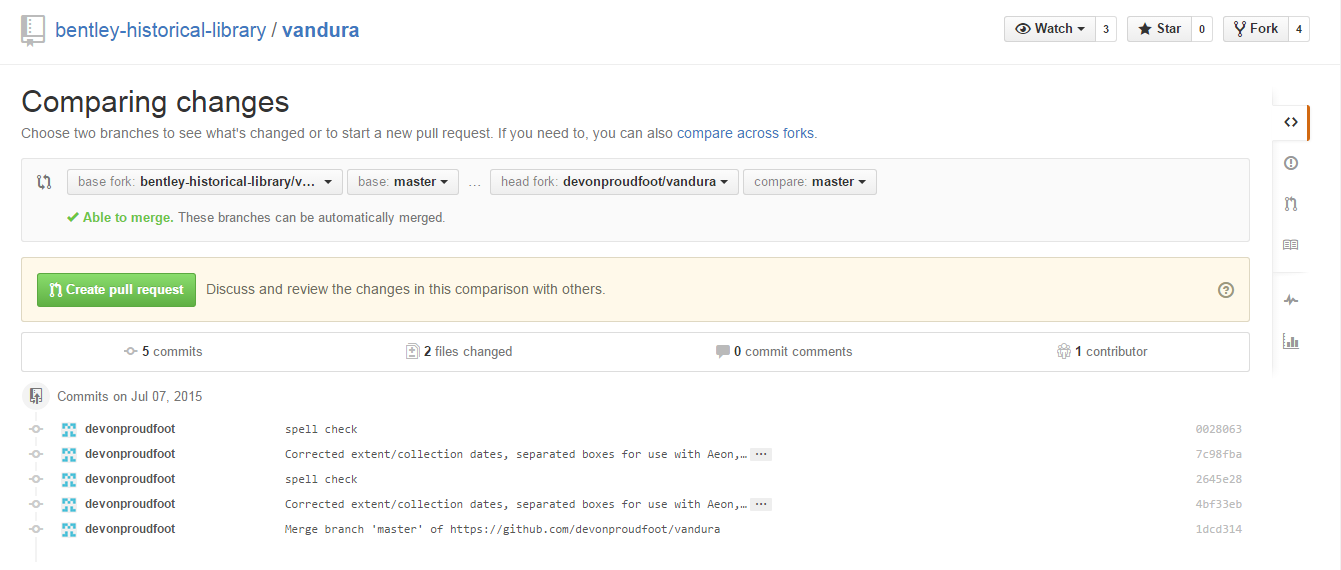
One of the adminstators for the Bentley account will then get a notification that a pull request (so called because Devon, for example, as an intern, does not have the ability to push to the main Bentley account, instead requesting that an administrator pull his changes instead) has been made. One of the administrators compares the changes that need to be made...

Comparing the changes that need to be made. This is incredibly helpful.

Based on that comparison, they either accept the changes or, if there is some sort of conflict, give him instructions (again, all online out in the open) to, for example, rebase to get the latest version of the EADs before making his pull request, and then accept...


Devon's changes have been merged with the Bentley's account. Notice that we're told that the latest change was Dallas merging Devon's pull request, and his meaningful commit message is shown next to the Real_Masters_all folder.

Kapow! Version controlled.

So Far, So Good


While there is a bit of a learning curve to using Git and GitHub (thanks again, Justin and Sarah, as well as Greg and Fiona, the Software Carpentry folks at HASTAC who taught Dallas and I Version Control with Git!) and teaching it to others, implementing a version control system has been great! We are now able to see every change that has been made. We know who did it and when (and, ideally why!). We even know when we're about to overwrite someone else's changes. Life is good!

All that being said, we've experienced a few hiccups along the way and we're still working out our Git-flow. We'd love to hear what you're doing for version control or your experience with Git and/or GitHub. Let us know by leaving a comment or getting in touch via email or Twitter!

[1] "Git-logo" by Jason Long - http://git-scm.com/downloads/logos. Licensed under CC BY 3.0 via Wikimedia Commons - https://commons.wikimedia.org/wiki/File:Git-logo.svg#/media/File:Git-logo.svg
[2] "GitHub logo 2013" by GitHub - https://github.com/logos. Licensed under Public Domain via Wikimedia Commons - https://commons.wikimedia.org/wiki/File:GitHub_logo_2013.svg#/media/File:GitHub_logo_2013.svg
[3] "Puffer Fish DSC01257" by Brocken Inaglory - Own work. Licensed under CC BY-SA 3.0 via Wikimedia Commons - https://commons.wikimedia.org/wiki/File:Puffer_Fish_DSC01257.JPG#/media/File:Puffer_Fish_DSC01257.JPG
[4] "Ocypode quadrata (Martinique)" by Free On Line Photos. Licensed under No restrictions via Wikimedia Commons - https://commons.wikimedia.org/wiki/File:Ocypode_quadrata_(Martinique).jpg#/media/File:Ocypode_quadrata_(Martinique).jpg
[5] Since these screenshots were done as Devon worked, they sometimes get a bit out of order...